



JazPiper Malaysia

2.1 Channel Family Karaoke Soundbar

When Light Meets Loud

【Design】

Fits in anywhere

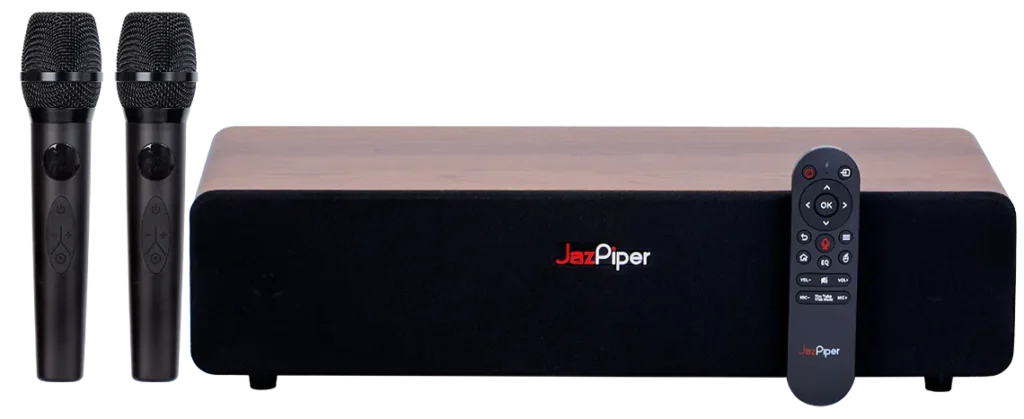
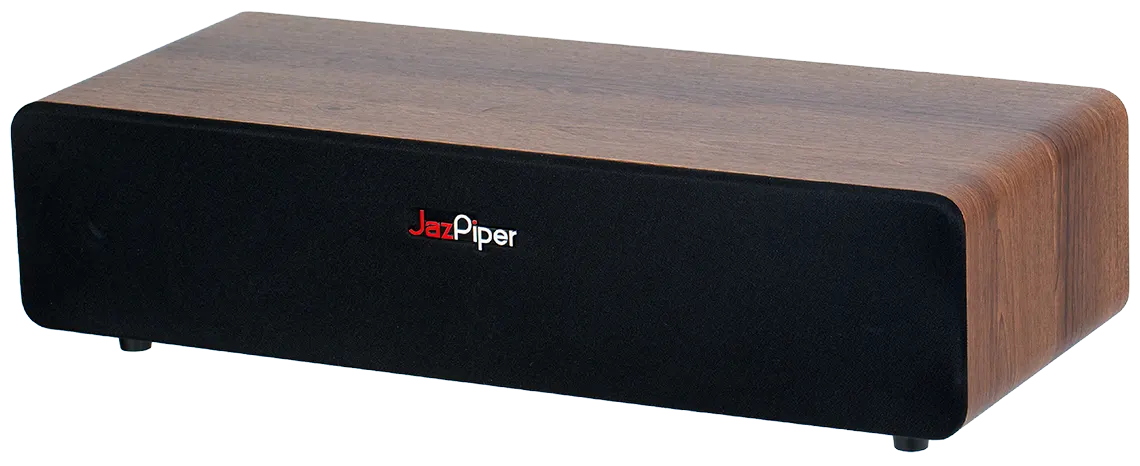
The JazPiper GO fits almost anywhere in your home. At just 12cm tall and 48cm long, it’s no longer than your average computer keyboard and no taller than a coffee cup.

A classic look reborn

Bringing back our iconic wooden aesthetics, the GO stands out wherever you place it despite its small size. The classical yet modern look never fails to bring a sense of style to your space.

MDF enclosure

A staple in high-end audio, MDF is the perfect material for improving acoustics while also reducing resonance and vibrations, ensuring that you get the cleanest sound possible.

【Performance】

Small in Size, Big on Sound

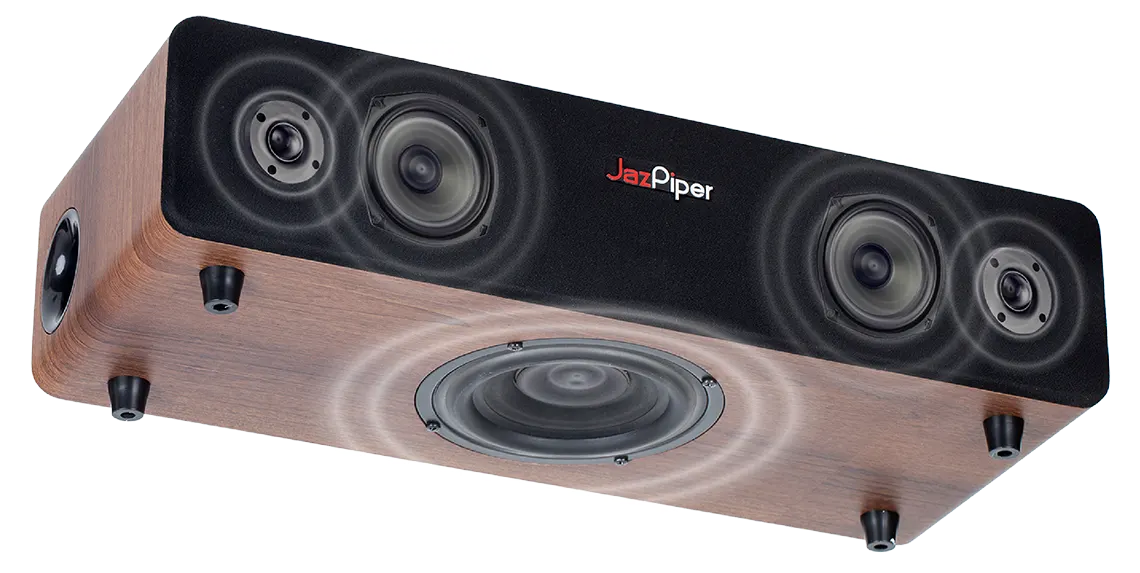
2" Tweeters

Dedicated tweeters on each side for clear and surrounding high frequency sound.

3" Mid-range Speakers

Dual mid-range drivers produce natural, clear vocals and instrumentals in stereo.

5" Internal Subwoofer

Down-firing subwoofer uses your floor to create richer, more fulfilling bass.

Don’t let the size fool you. The JazPiper GO comes with a total of 5 speakers, with 2 mid-range, 2 tweeters and an internal subwoofer.

DSP-powered tuning and EQ

The Digital Signal Processor (DSP) chip powers the tuning and EQ of the GO. With years of experience, our engineers have tuned the GO to make sure only the best sound comes from it. But if it’s still not to your liking, the EQ lets you freely adjust what you want to hear, from echo, reverb and bass or treble effects.

AI-powered Vocal Removal

Powered by a dedicated chip on the GO, you can now mute the vocals of any song played. Play your favorites on YouTube, or from your phone through Bluetooth, then hit the vocal removal button and start singing.

Experience Effortless

Plug and Play with just 2 cables. It’s that simple.

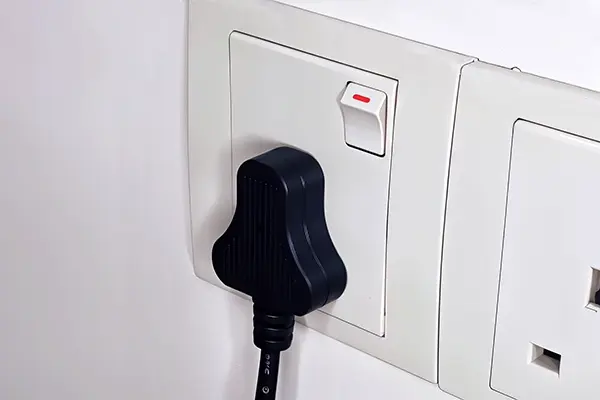
Connect to Power Supply

Plug into a power source.

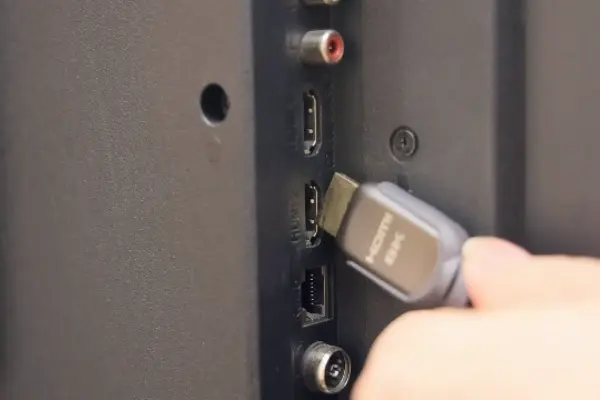
Connect to TV via HDMI

Use an HDMI cable for instant connection to your TV.

Get Ready to Sing

Switch on the device and start singing.

Control Your Way

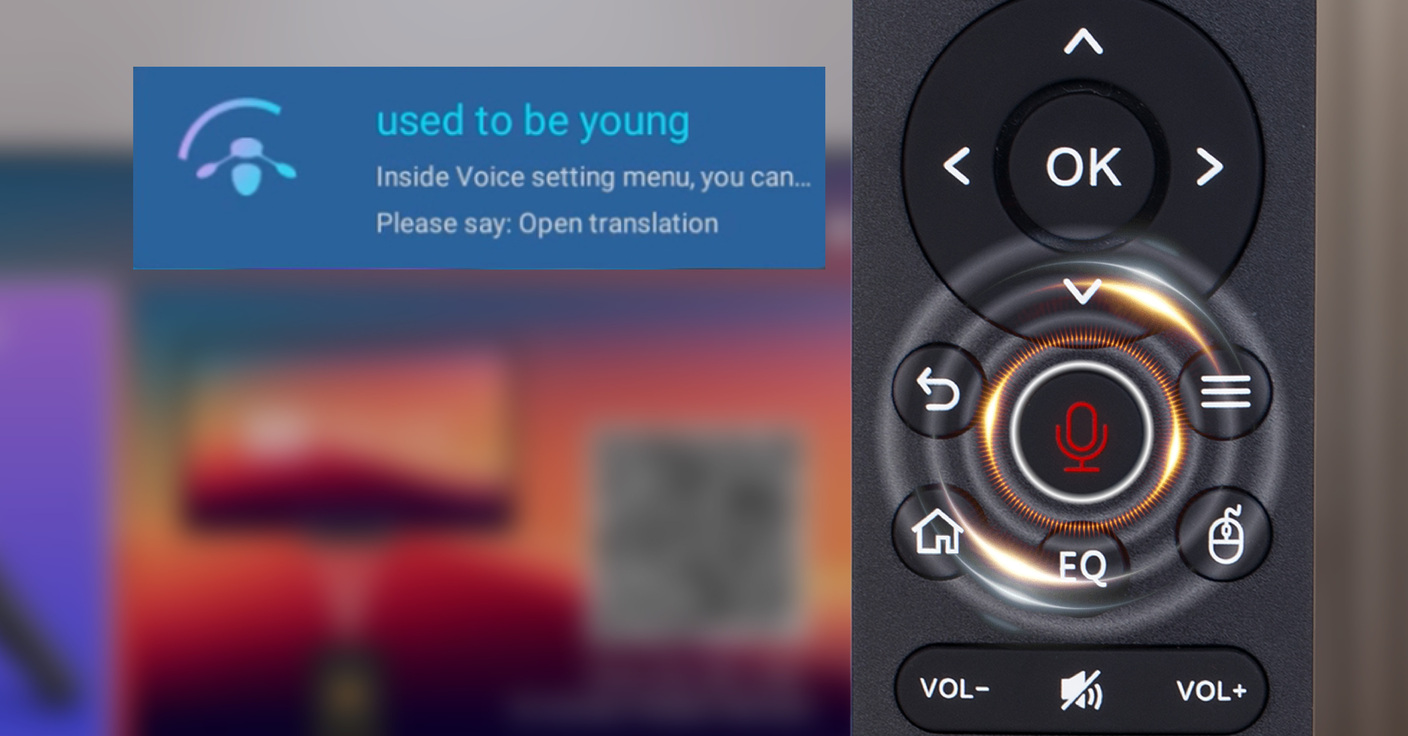
Voice Remote

Use voice commands to search for your favorite songs and singers.

QR Code

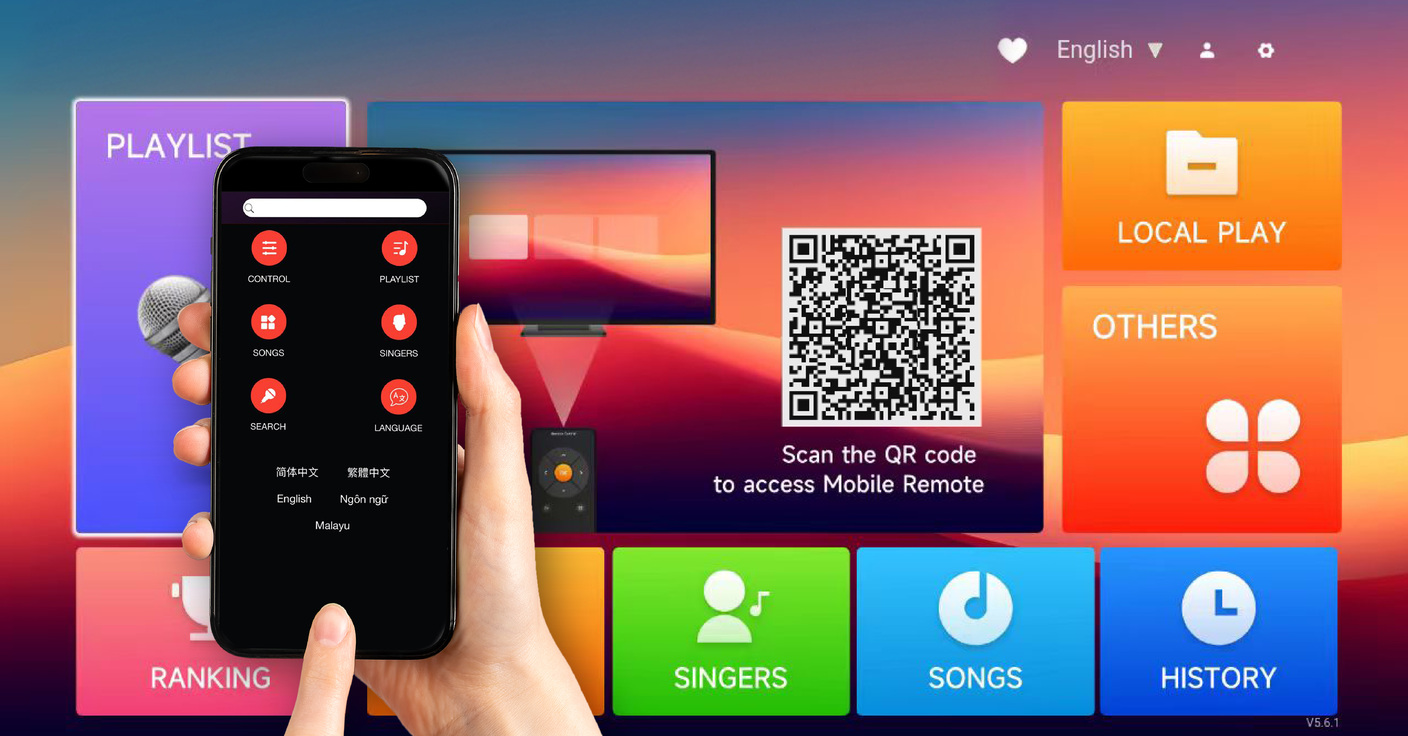
Turn your phone into a remote just by scanning a QR code.

Unlimited Songs

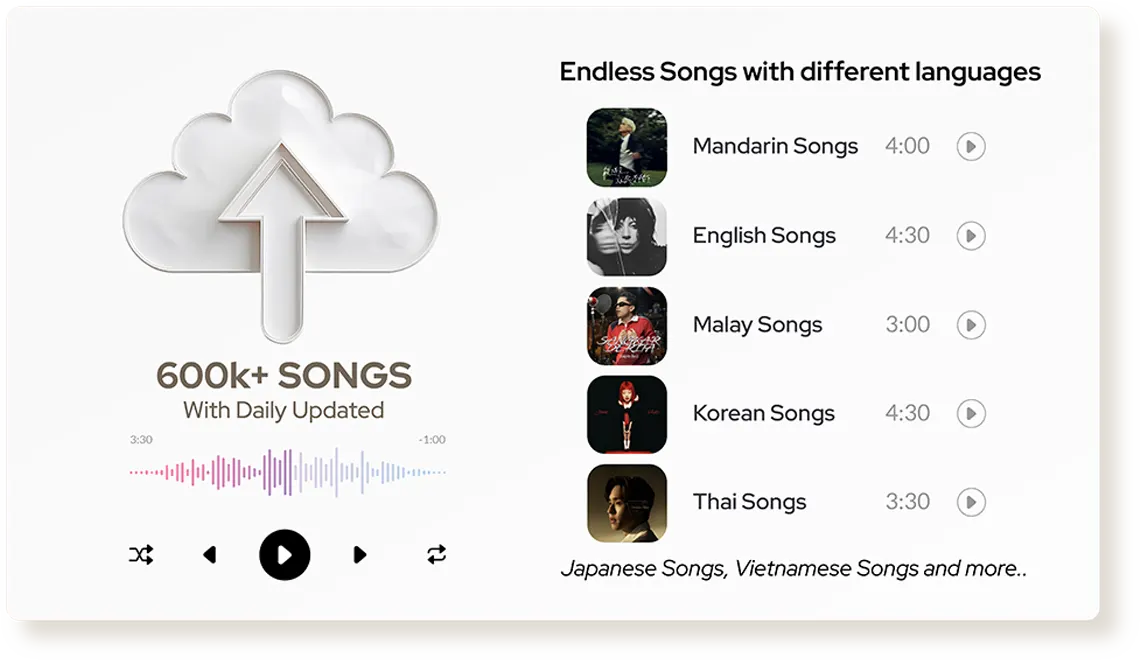
With JazPiper, you’ll never run out of songs. Our ever-growing library of songs that’s updated daily makes sure you get to sing the latest hits every day.

The Power of Android

Get access to your usual apps like YouTube, iQIYI and many more, straight out of your JazPiper. Whether it’s a karaoke night or a movie binge, JazPiper’s got you covered.

Frequently Asked Questions

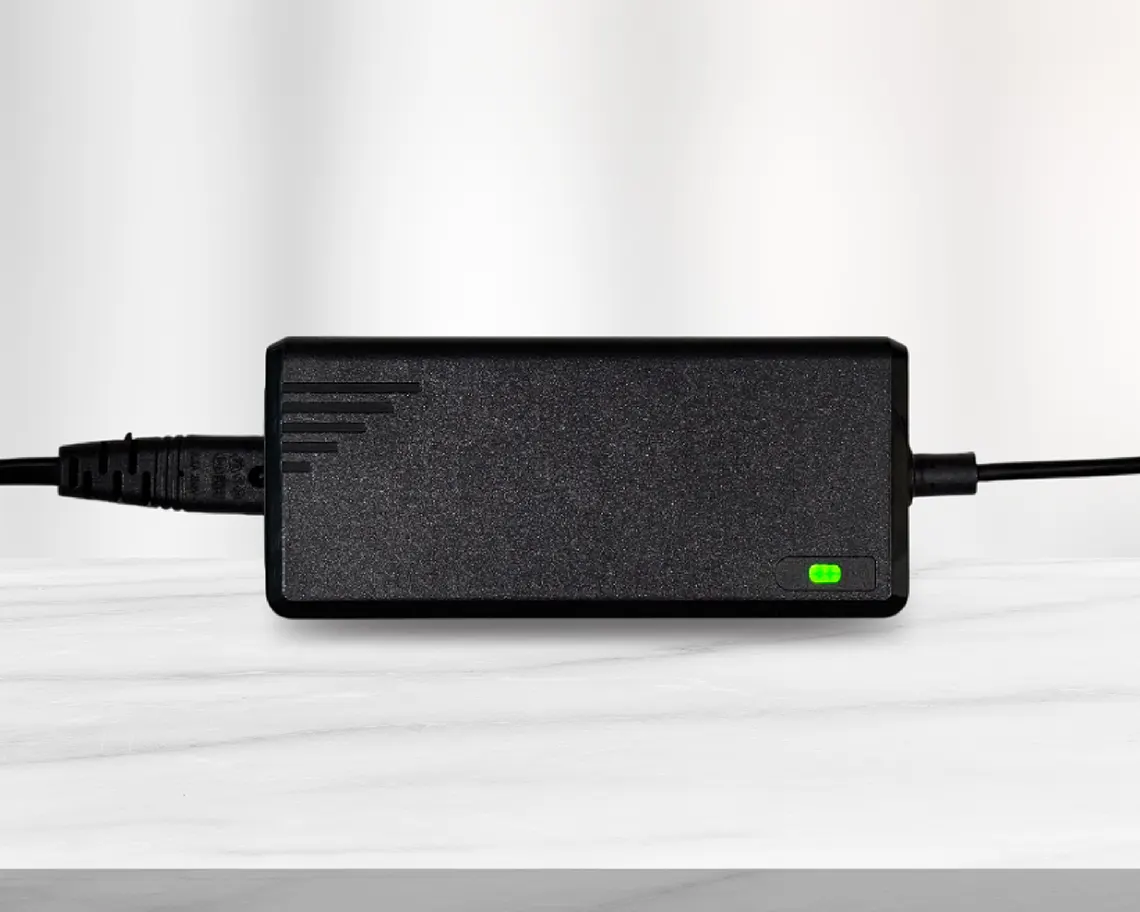
Confirm that your adapter is plugged in properly by checking that the green LED light is on. The power LED in front of your JazPiper GO should be red. If both of the lights are on, try turning on the JazPiper with your remote. If it still does not start, please contact our support team for further assistance.
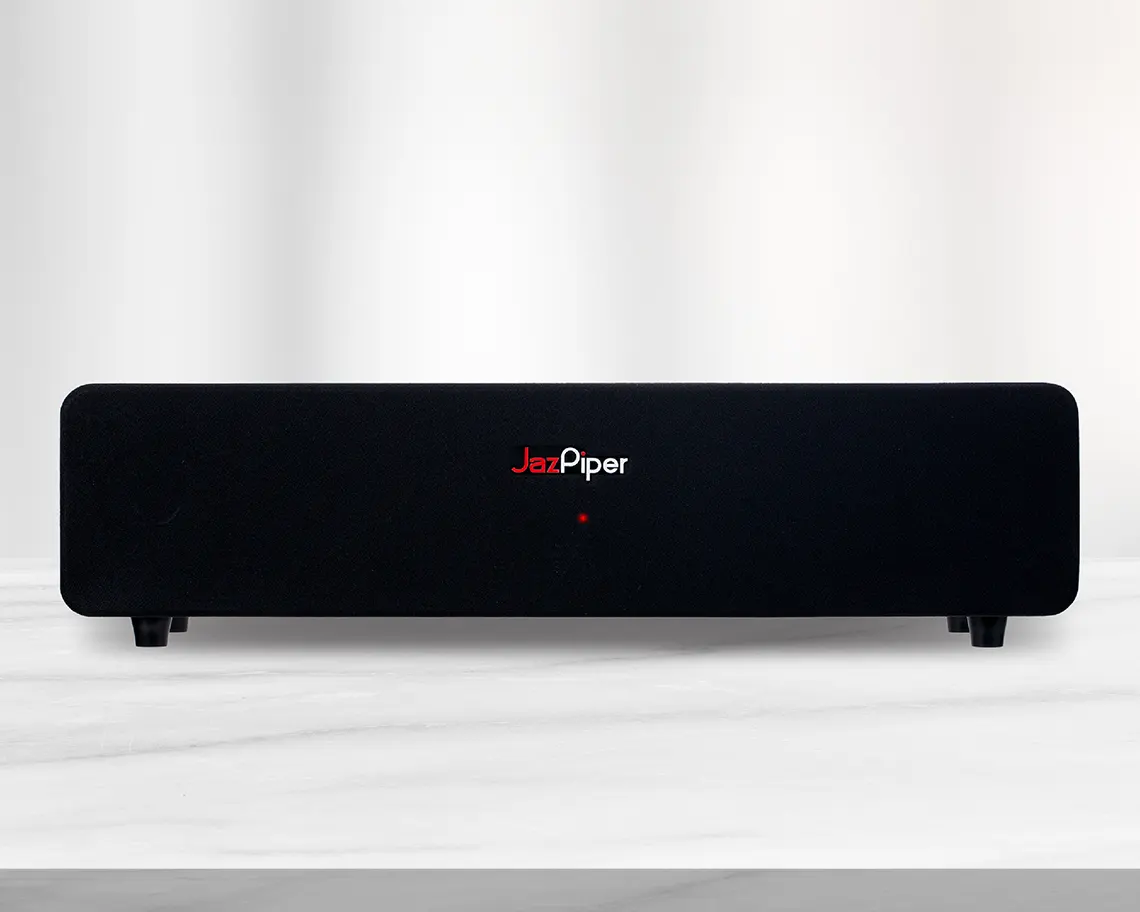
Check if your JazPiper is powered on. A red LED light should show at the front of your GO.

Check your TV or monitor source settings. Make sure the source selected matches the port connected to your JazPiper. You may also try restarting your TV or monitor.

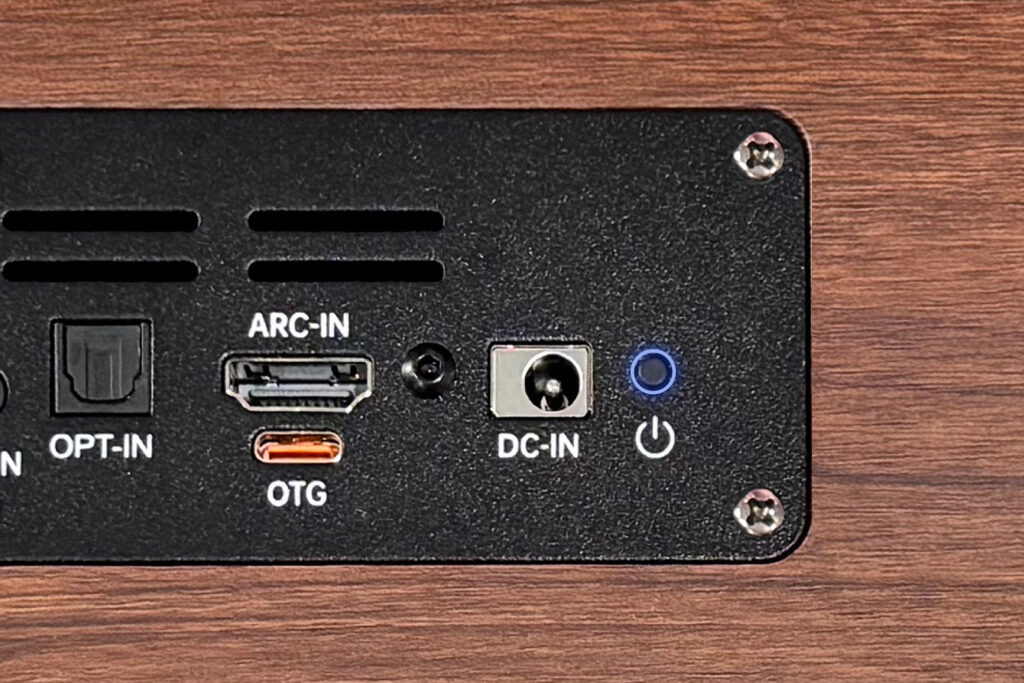
Check whether the correct HDMI port on your JazPiper has been connected. The correct port is located on the most left side of the rear panel.
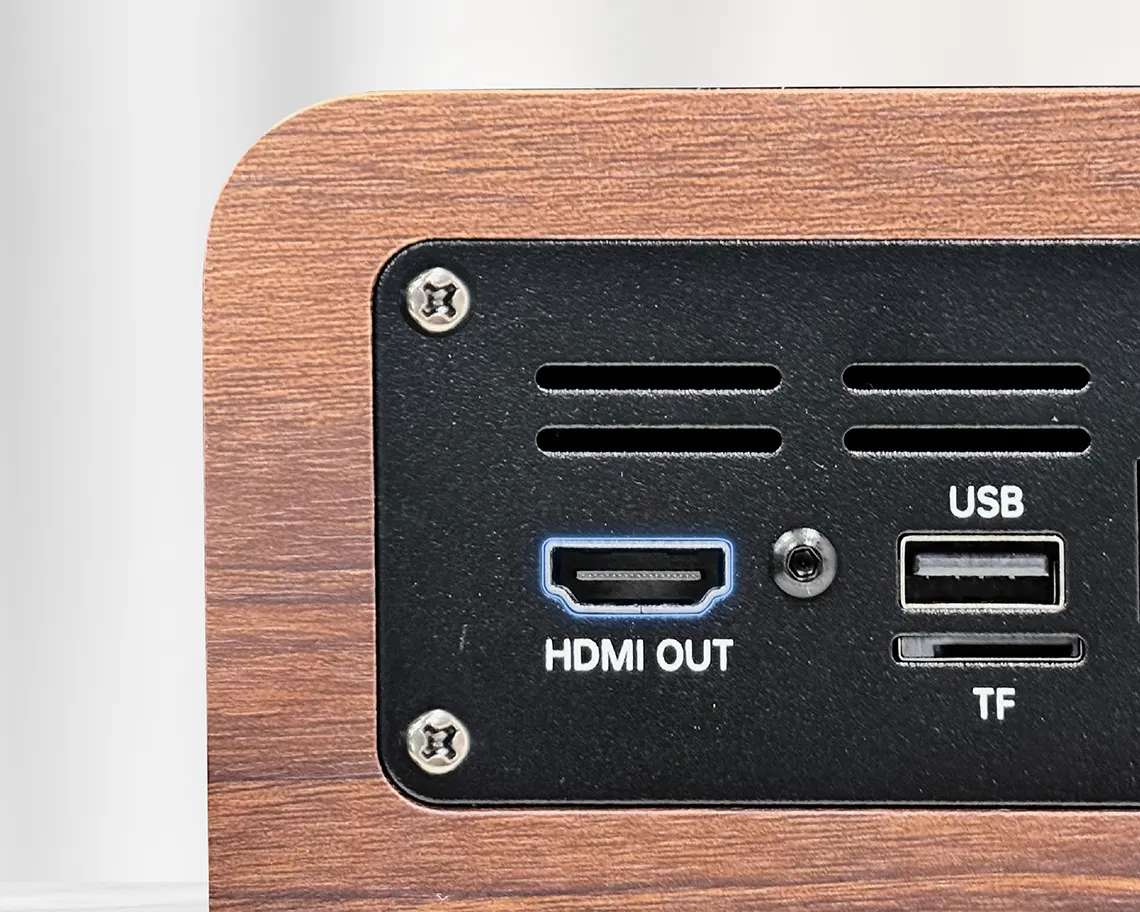
You may try changing the HDMI cable used to see if the cable is faulty.

Try with a different TV or monitor to see if the first TV or monitor is faulty.

If you have tried the above steps and there is still no display output, please contact our support team for further assistance.

Check your volume settings. Music volume should be above 0. You may also try installing SetVol, a fix that restores your system’s volume to default. See the video below.     If SetVol did not restore your sound, please contact our support team for further assistance.

You may need to reset your microphone’s connectivity to your JazPiper by holding down the “+” button.
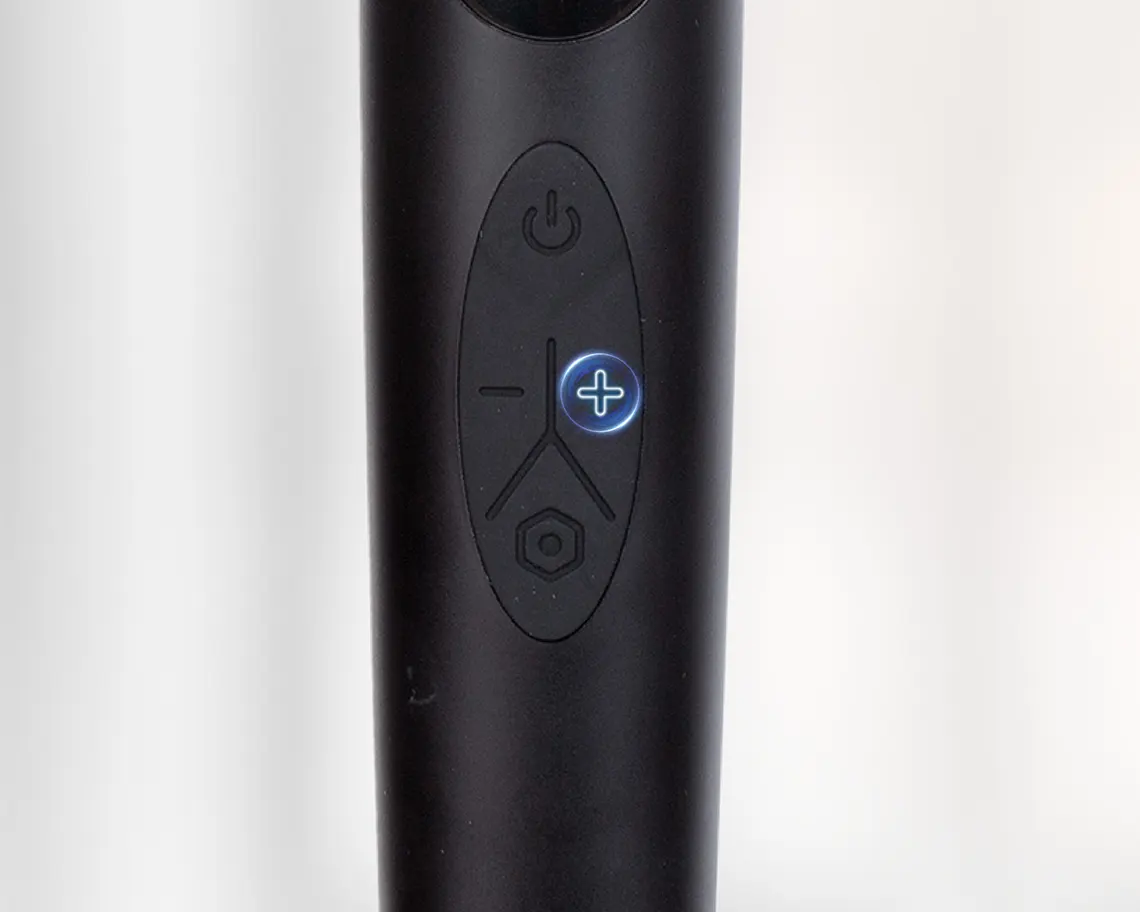
If you have reset your mic and there is still no sound, you can double check if it is connected to your JazPiper by viewing its status in the Sound Console.

 Grey means not connected

Pink means connected

If there is still no sound, please contact our support team for further assistance.

Confirm that your internet is working properly. Try using other apps such as YouTube and see if internet is available.
You may also use your other devices to test your internet.

Try connecting to another network. Turn on your phone’s hotspot and connect your JazPiper to it and see if the issue remains. If the songs play smoothly, it may mean that your home internet is unstable at the moment.

If your internet is working properly, you may try switching servers and see if it helps with the issue.
On the Homepage, go to Account  > Choose Server > Use Server 1 or 2

Make sure that your remote control is connected to your JazPiper via Bluetooth, as shown in this video.

Your JazPiper GO can be used as a speaker and has multiple modes to play music from other sources. Press  on your remote to switch between modes.

Android Mode – Default mode

Bluetooth Mode – Connect to your GO with any Bluetooth-enabled speaker

ARC Mode – Uses HDMI cable to connect from HDMI ARC enable devices

Optical Mode – Uses Optical cable to connect

AUX Mode – Uses 3.5mm AUX cable to connect

Item Duration
Soundbar & Subwoofer1 Year
Microphones6 Months
Remote Control6 Months
Power Adapter6 Months
HDMI Cable6 Months

a. USB-C cable is not covered under warranty.
b. Physical or water damage is not covered under warranty.
c. Proof of purchase is required when claiming for warranty.